
Introduction
Build, test, deploy, and monitor AI agents.
Here's what iMash offers
Build
Test
Deploy
Monitor
CRM Leads
Request Builder
Click "Execute Request" to see the responseSchema & Fields
Welcome to iMash
iMash puts an AI-powered call center, a full CRM, and a workflow automation engine in one platform. In the next 15 minutes you'll create your first AI voice agent, talk to it live, and give it a real phone number.
What is iMash?
iMash is the platform where your business answers every call, follows up on every lead, and never sleeps. At its heart are AI voice agents — lifelike assistants that answer and make phone calls 24/7, book appointments, qualify leads, and hand off to your human team when it matters. Around them, iMash gives you the whole operation: smart outbound campaigns and predictive dialers, a full CRM with a sales pipeline (quotes, invoices, and payments included), field-service dispatch that texts jobs to technicians automatically, omnichannel messaging across SMS, WhatsApp, and Email, a contact center for human teams, drag-and-drop automations, and real-time analytics on all of it. One login, one place, everything talking to everything else.
The fastest way to feel the magic is to build an agent and hear it speak — so let's do exactly that.
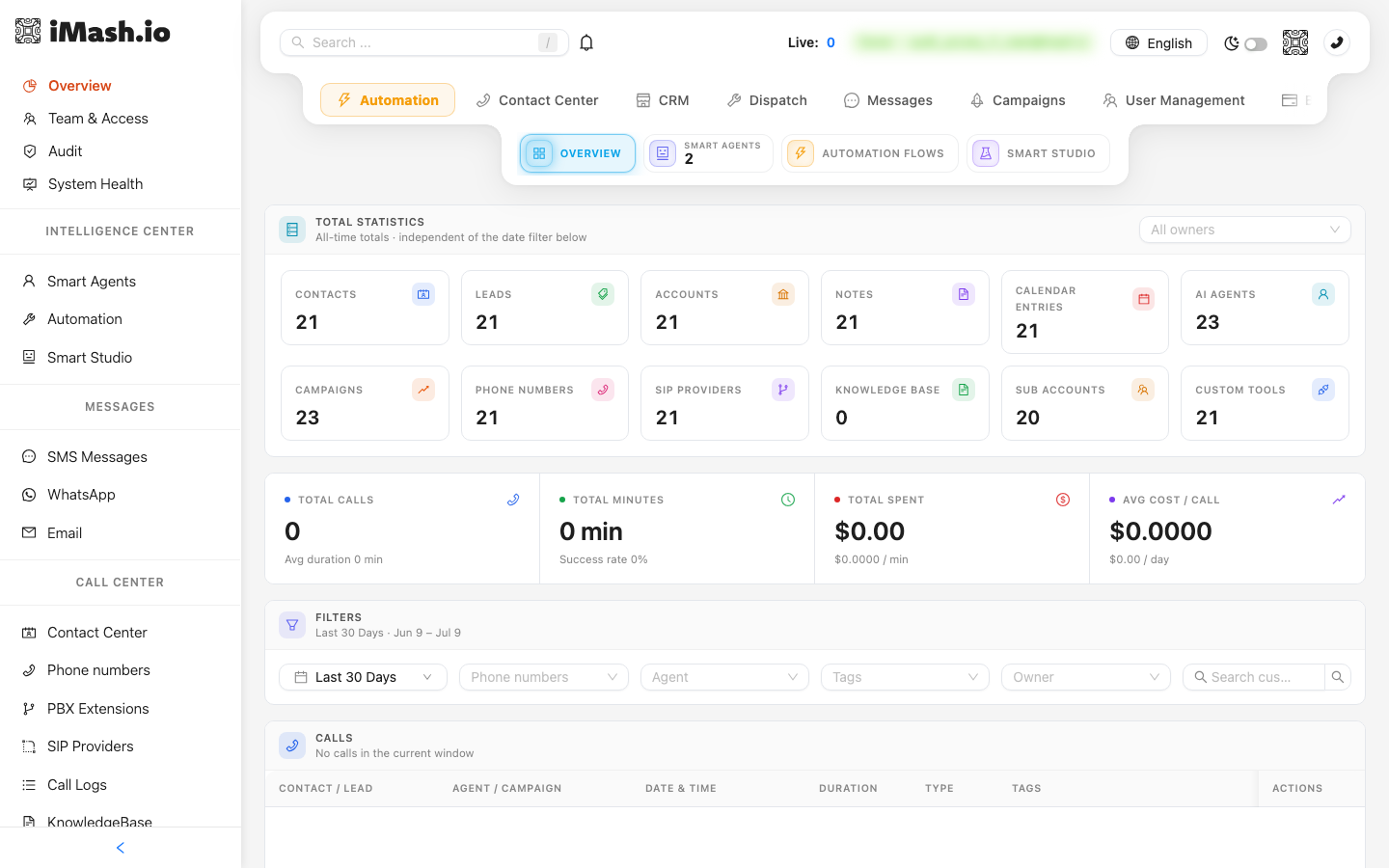
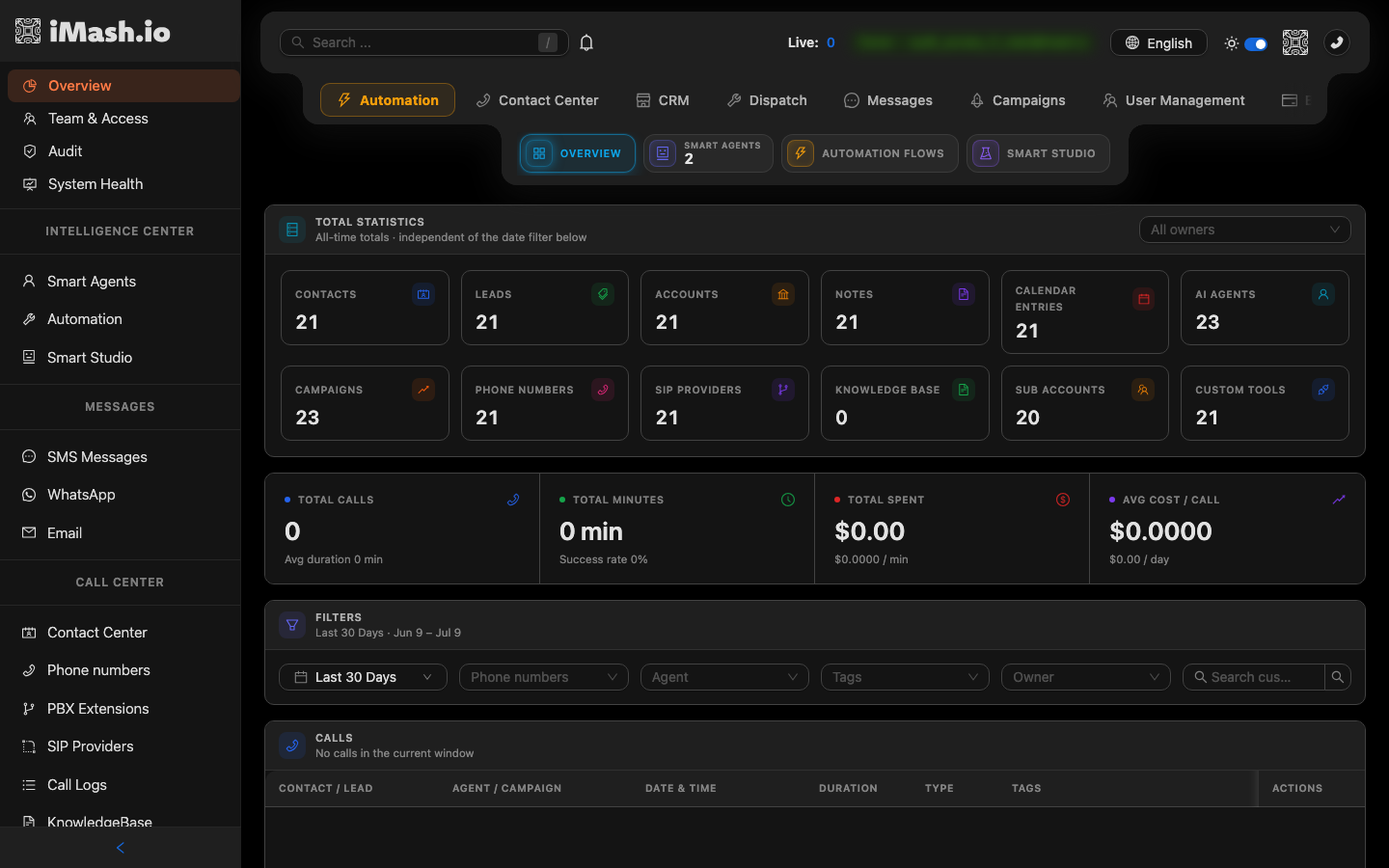
Your First 15 Minutes — Create an AI Agent
Every great setup starts with one agent. Here's how to bring yours to life:
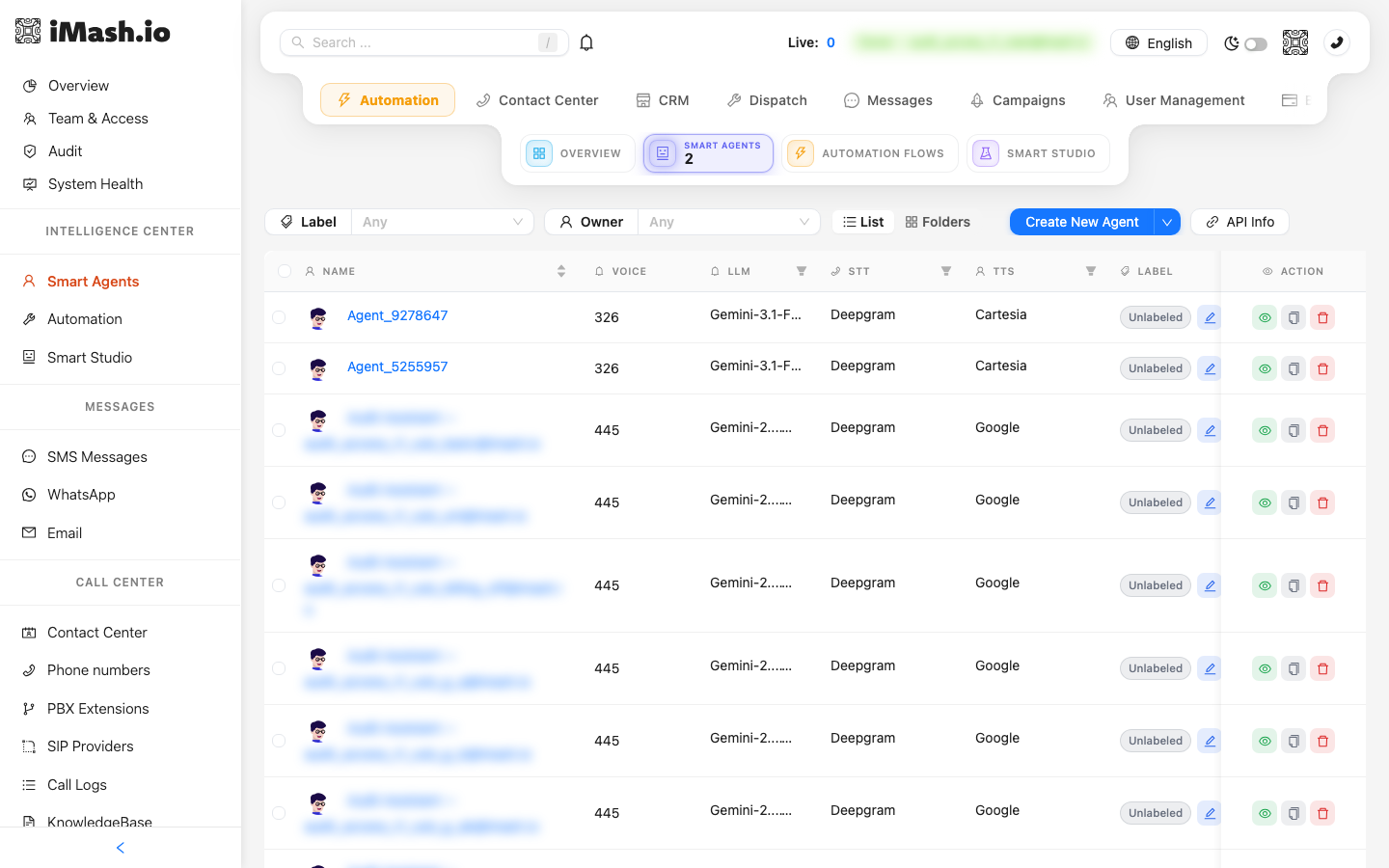
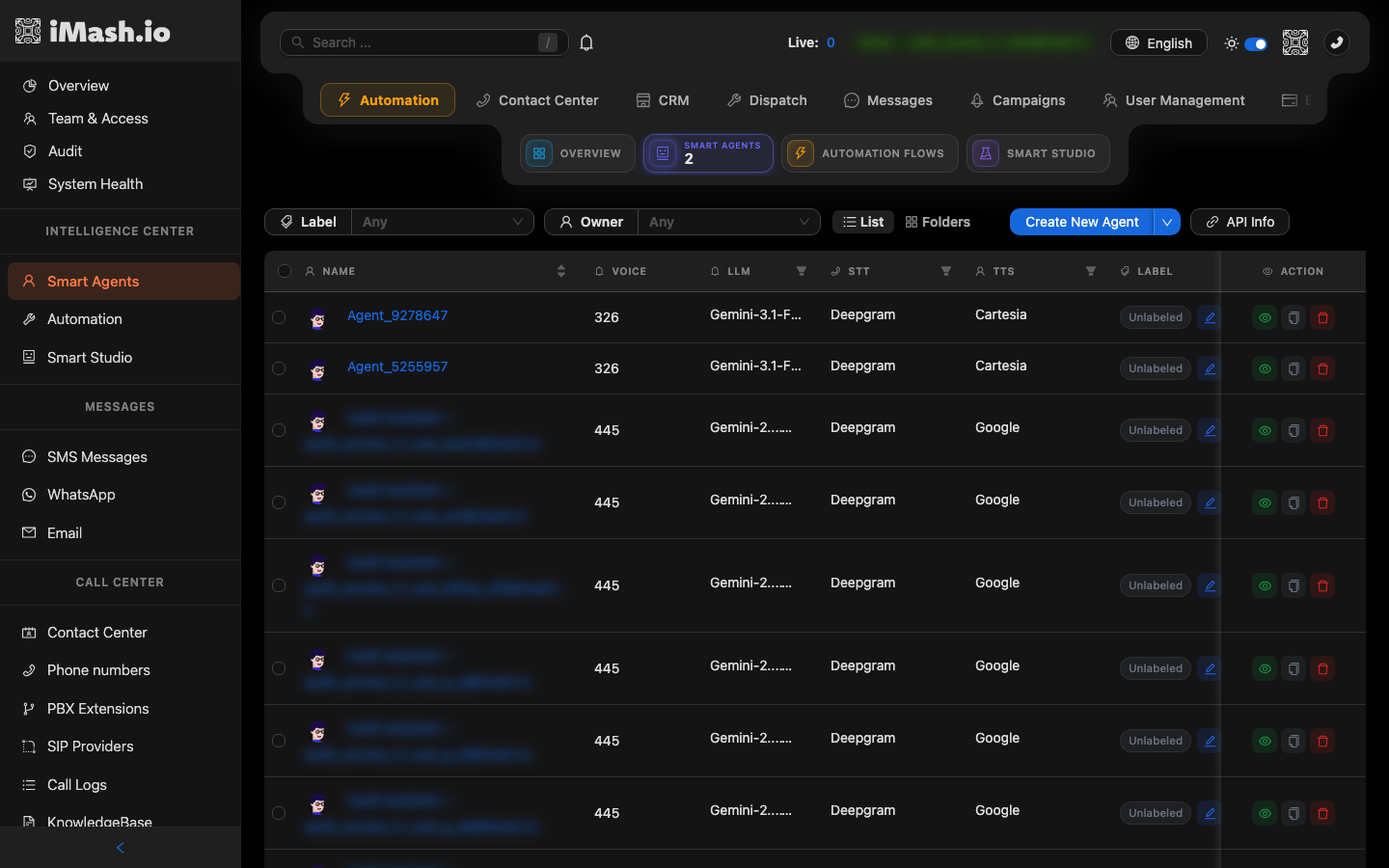
- In the left sidebar, under Intelligence Center, click Smart Agents.
- Click the blue Create New Agent button in the top-right of the list.
- Your new agent is created instantly with a placeholder name (like Agent_1234567) and opens straight into the visual builder.
Prefer a head start? Click the arrow next to Create New Agent and choose Browse Templates to start from a ready-made agent.
💡 Tip: Don't overthink the first agent — you can rename it, change its voice, and rewrite its instructions at any time. The goal right now is to hear it talk.
Give It a Brain, a Voice, and a Personality
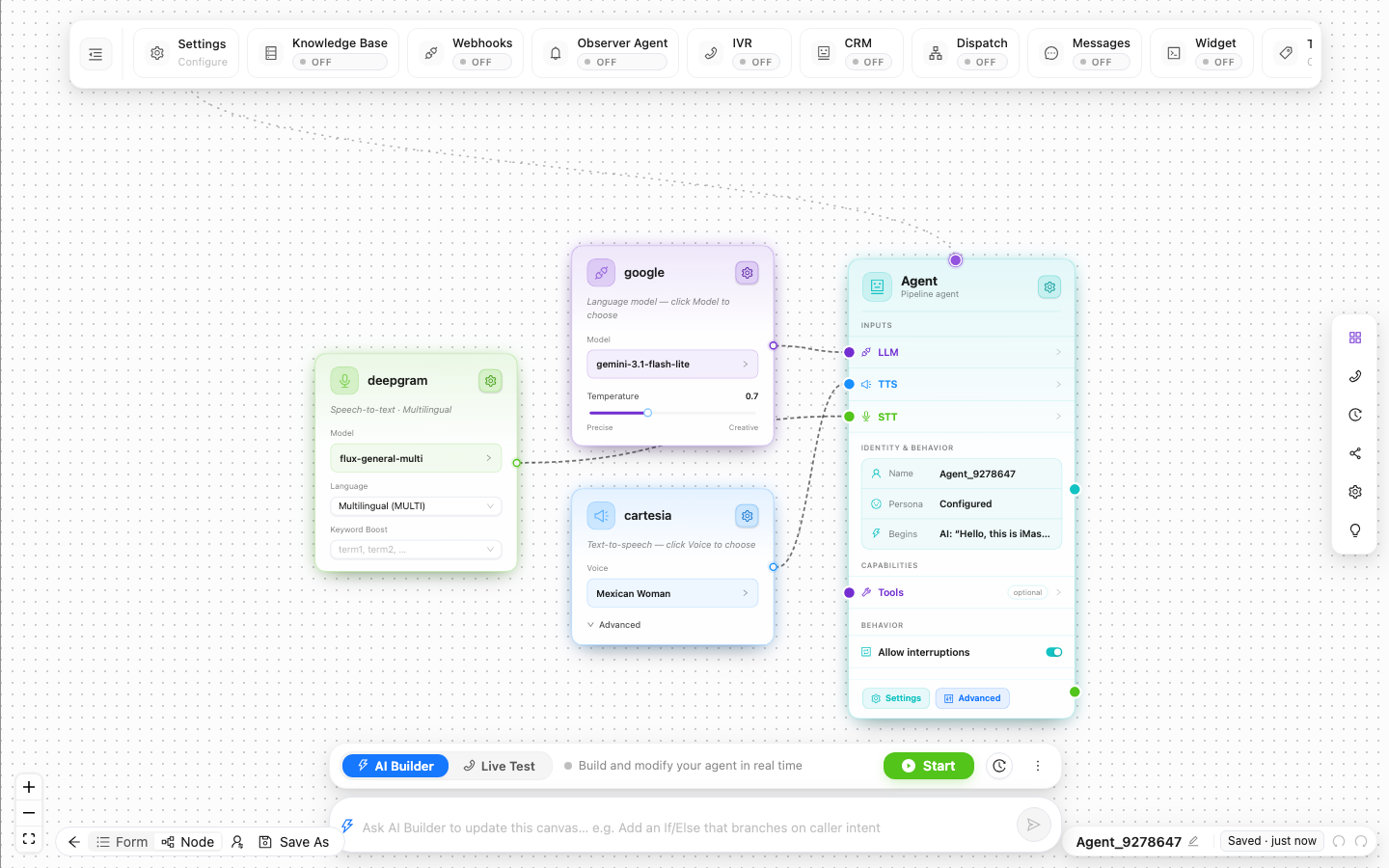
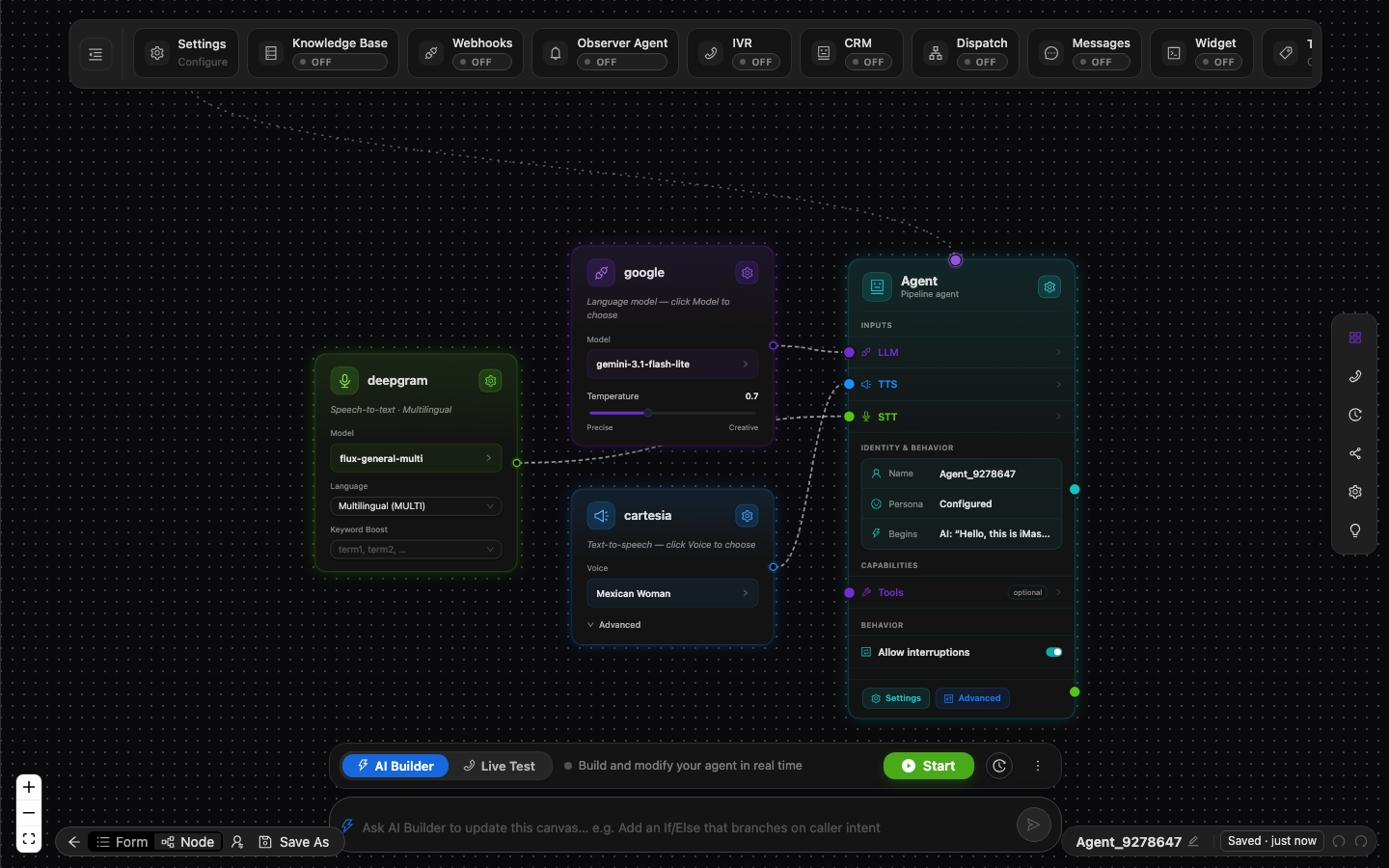
New agents open in the visual builder — your agent's entire mind on one canvas. The three cards feeding into the Agent node are its senses:
- LLM card — the language model that does the thinking. Click Model to choose one, and drag Temperature between Precise and Creative (0.7 is a great starting point).
- TTS card — the text-to-speech voice your callers hear. Click Voice to browse and preview voices.
- STT card — speech-to-text, how the agent hears. The default multilingual model works out of the box.
On the Agent node itself, set the identity:
- Name — click it to rename your agent (e.g. "Ben from Support").
- Persona — the instructions that define who the agent is, what it knows, and how it behaves.
- Begins — the opening line the agent says when a call starts.
- Allow interruptions — leave this on so callers can talk over the agent naturally.
Across the top you'll see capability switches — Knowledge Base, Webhooks, Observer Agent, IVR, CRM, Dispatch, Messages, and Widget — each one unlocks a superpower you can explore later.
💡 Tip: Feeling ambitious? Type what you want into the AI Builder bar at the bottom (e.g. "Add an If/Else that branches on caller intent") and iMash will build the flow for you.
Talk to Your Agent — Right in the Browser
This is the moment. No phone number needed yet — you can have a live voice conversation with your agent straight from the builder:
- In the bar at the bottom of the canvas, click Live Test.
- Click the Start button.
- When your browser asks for microphone access, click Allow.
- Say hello! The agent answers with its opening line and holds a real conversation. You can also type into the Talk to your agent box to chat by text.
⚠️ Heads-up: If you don't hear anything, check that your browser has microphone permission and your speakers aren't muted — the browser's mic prompt only appears the first time.
Not happy with an answer? Switch back to AI Builder, tweak the persona or opening line, and test again. Iterating takes seconds.


Give Your Agent a Real Phone Number
An agent with a phone number is an employee that never takes a day off. Let's get one:
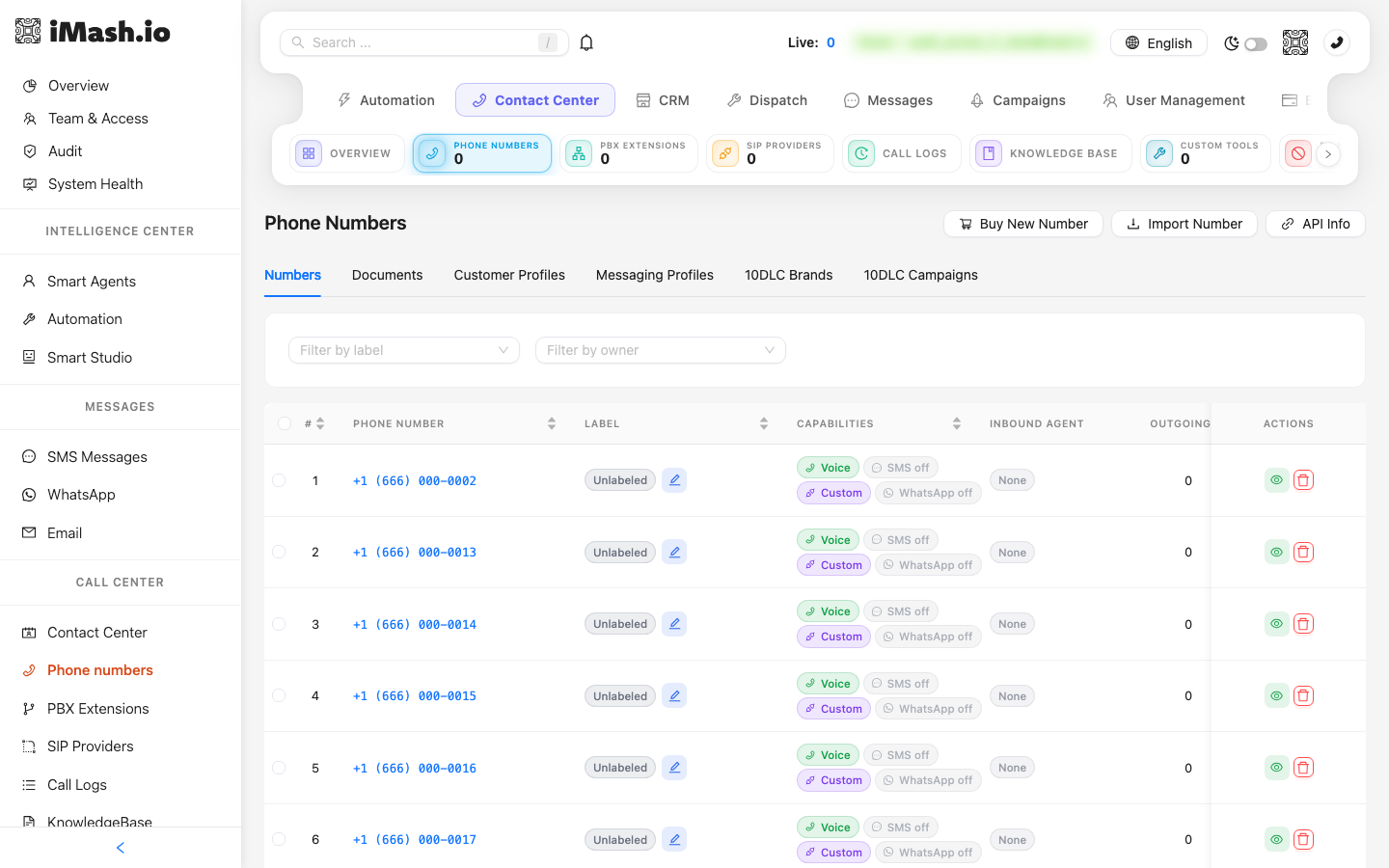
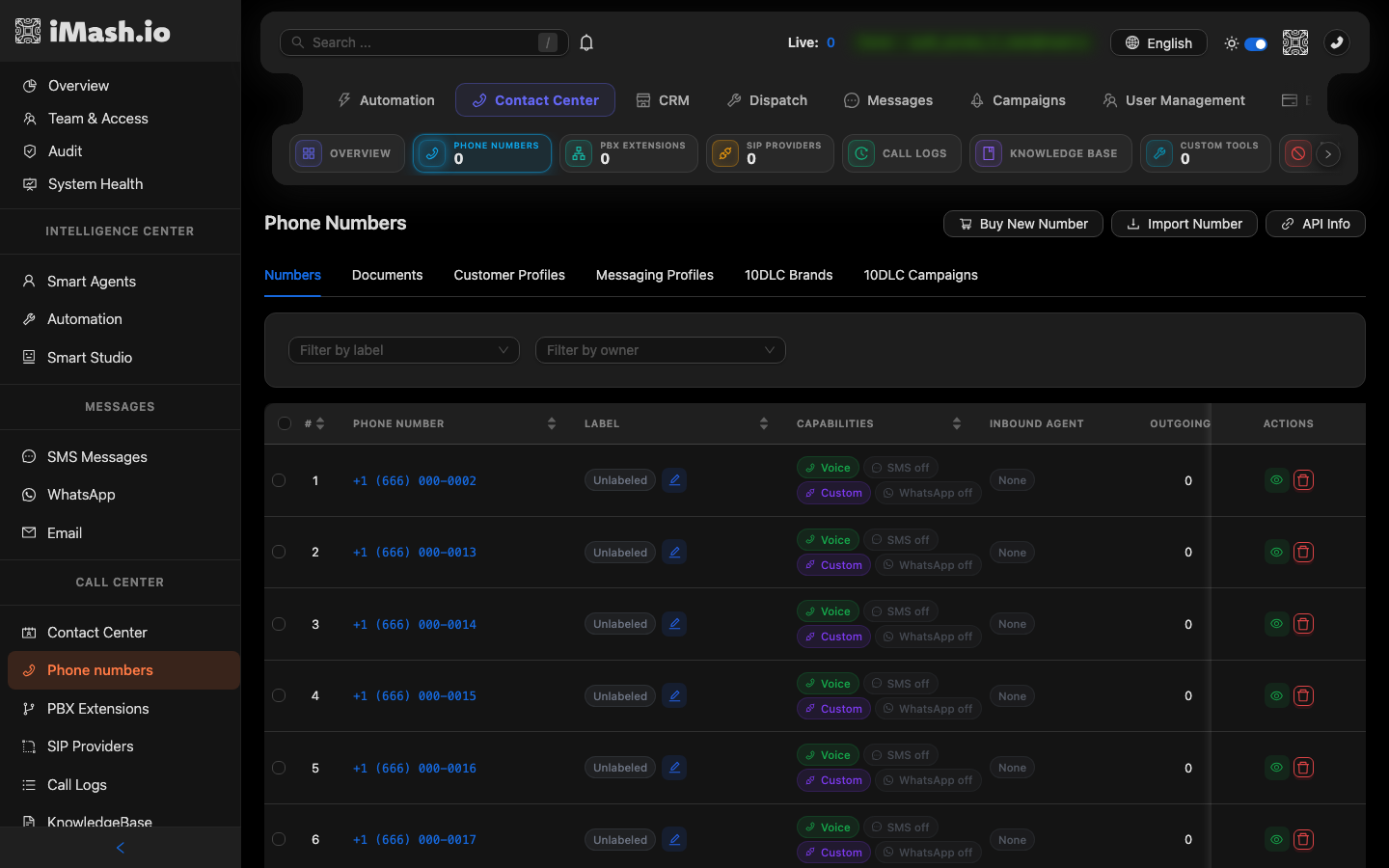
- In the left sidebar, under Call Center, click Phone numbers.
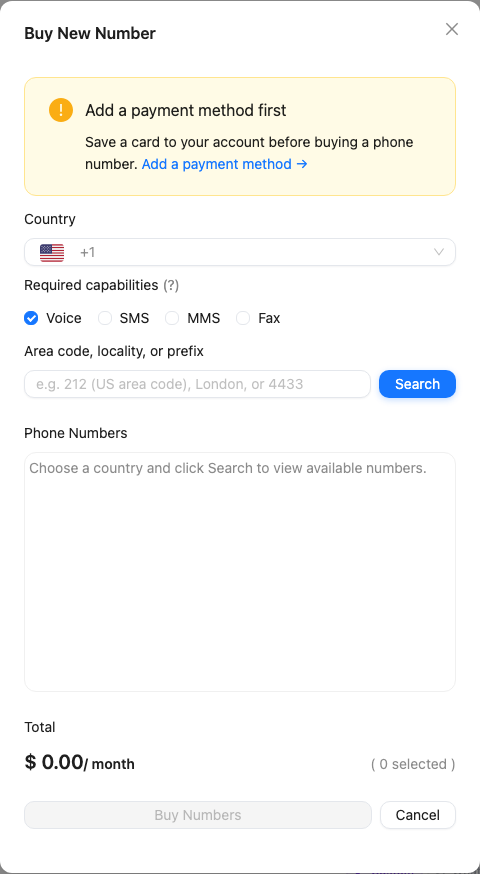
- Click Buy New Number in the top-right.
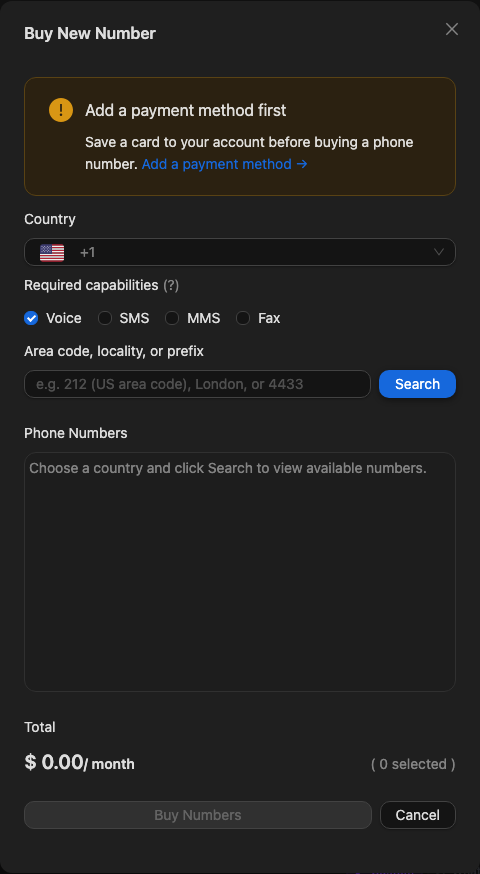
- In the modal, pick your Country.
- Under Required capabilities, keep Voice checked (add SMS if you also want texting on this number).
- Type an Area code, locality, or prefix (e.g. 212) and click Search.
- Select the numbers you like from the list — the Total shows the monthly price — then click Buy Numbers.
💡 Tip: If the modal shows an Add a payment method first banner, click the link inside it to save a card — then come back and buy your number.
Already have numbers with another carrier? Use Import Number, or connect your own trunk under SIP Providers in the sidebar — iMash plays nicely with the phone system you already own.
Connect the Agent to the Number — and Make the First Call
Last wiring step — tell the number who should pick up:
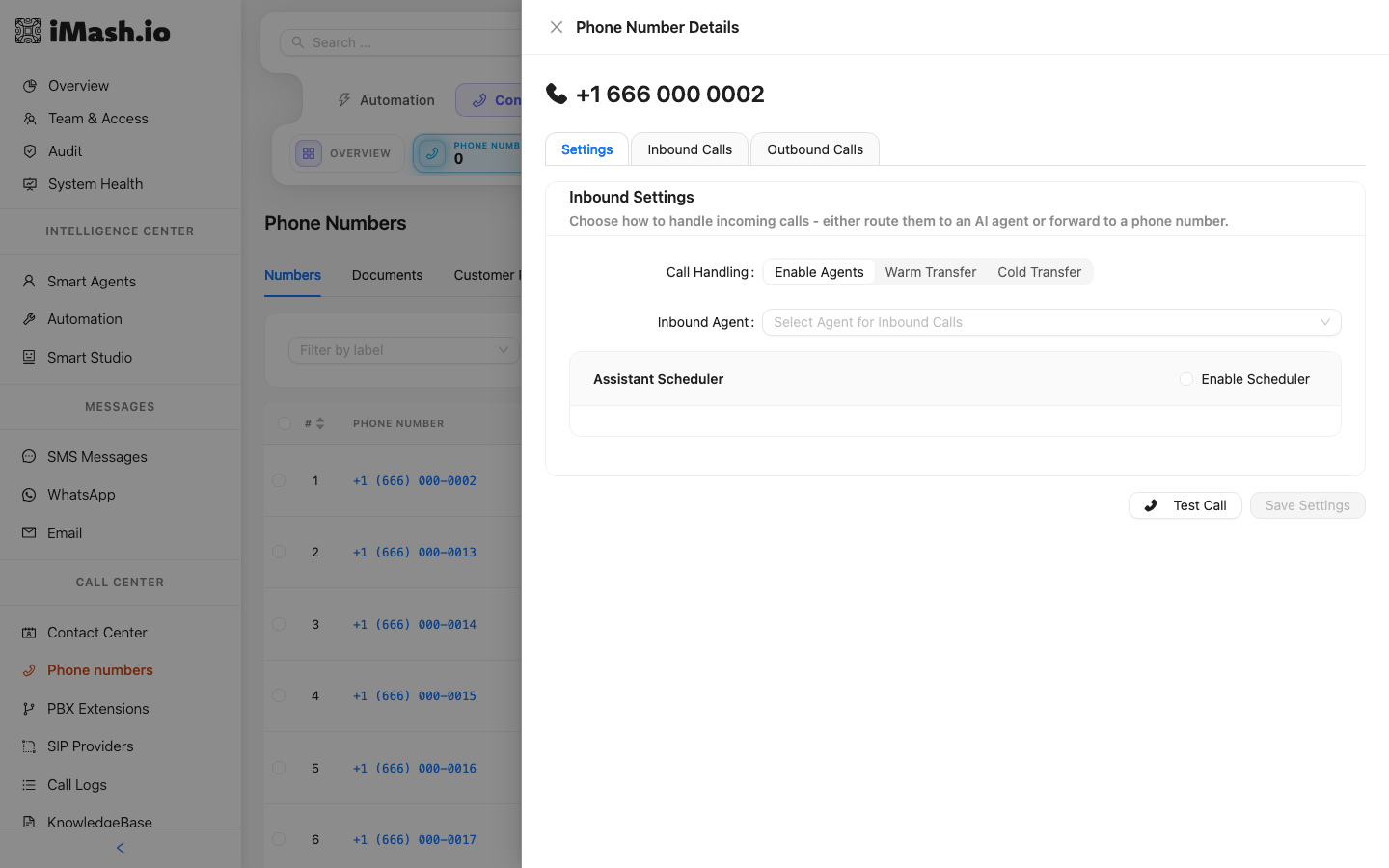
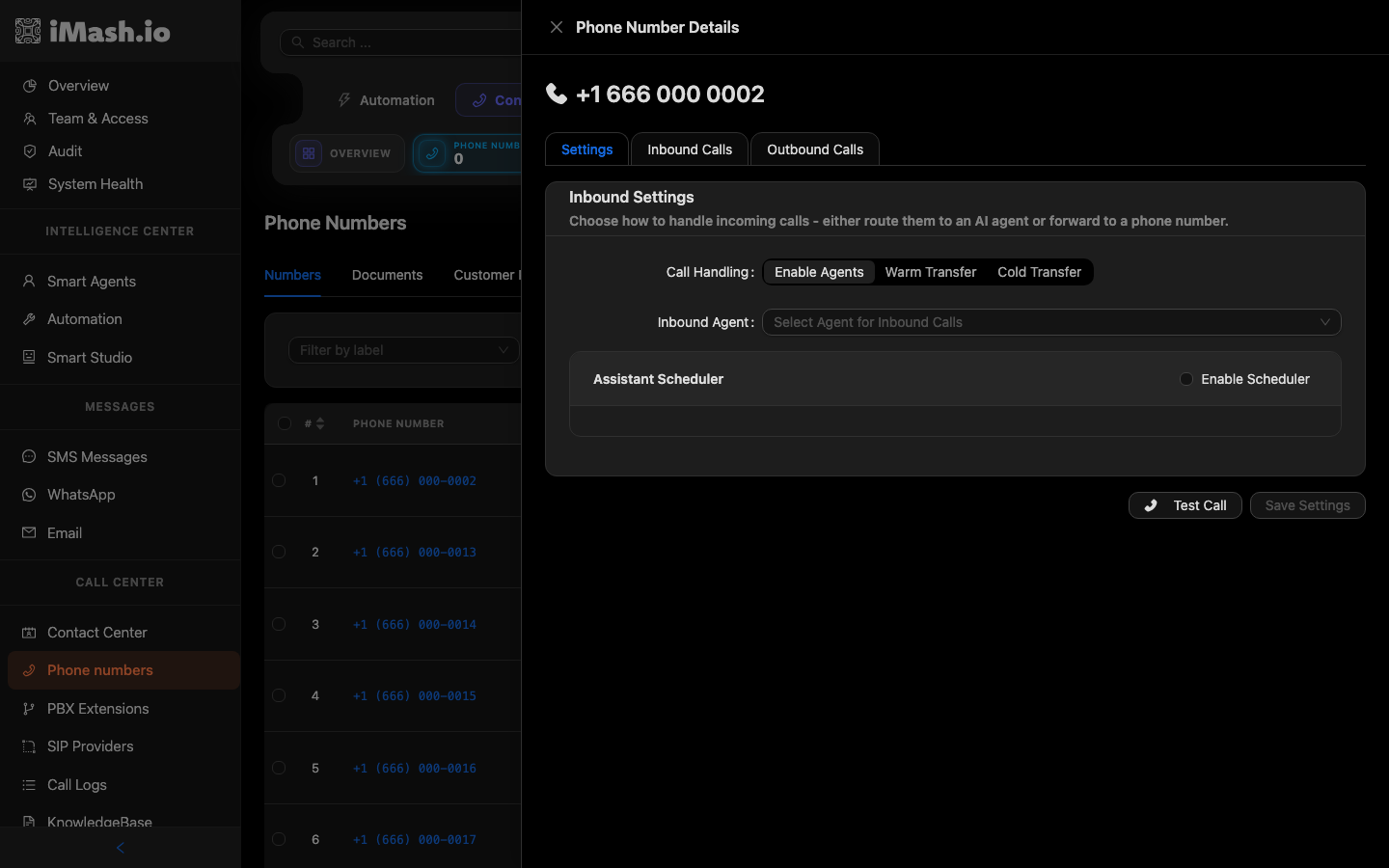
- On the Phone Numbers page, click the number you just bought. The Phone Number Details panel opens.
- On the Settings tab, under Inbound Settings, set Call Handling to Enable Agents.
- In the Inbound Agent dropdown, select the agent you created.
- Click Save Settings.
- Now the payoff: call the number from your own phone. Your agent picks up, greets you with its opening line, and handles the conversation — you can also click Test Call in the panel to trigger a test.
That's it — you now have an AI employee with its own phone line. Every call it takes shows up in Call Logs with a full transcript, recording, and AI-generated summary.
💡 Tip: The Warm Transfer and Cold Transfer options let a number forward callers to a human or another line instead of (or after) the AI — perfect when you're ready to blend AI and human teams.
Explore the Platform
Your agent is live — and you've only scratched the surface. Here's the rest of the iMash universe, one click away:
- AI Voice Agents — knowledge bases, tools, sub-agents, custom variables, and website embeds turn a simple agent into a specialist team. Build smarter agents →
- Phone System — numbers, SIP providers, call routing, PBX extensions, and voicemail, all managed in one place. Set up your phone system →
- Contact Center — a full workspace for human teams: skill groups, queues, ring strategies, live monitoring, whisper and barge. Tour the Contact Center →
- Campaigns & Dialers — upload a dial list and let AI agents (or a predictive dialer feeding your human reps) work through it automatically. Launch a campaign →
- CRM — leads, contacts, accounts, tasks, calendar, and online booking forms, all connected to every call and message. Organize your CRM →
- Sales Pipeline — deals, quotes, invoices, subscriptions, and card payments, from first touch to paid-in-full. Work your pipeline →
- Field-Service Dispatch — jobs auto-texted to technicians, first-to-accept wins, with customer notifications along the way. Automate dispatch →
- Messages — SMS, WhatsApp, and Email in unified inboxes, with AI text agents that reply on every channel. Master messaging →
- Marketing — import contact datasets, scrape local businesses, and build lead lists ready to dial. Find new leads →
- Automations — visual smart flows, custom tools, webhooks, and MCP servers that connect iMash to everything else. Automate your workflows →
- Analytics — dashboards, reports, and per-call cost breakdowns so you always know what's working. Measure everything →
- Settings — team members and roles, billing, security, audit log, and full white-label branding. Configure your workspace →
Need Help?
If you run into any issues or have questions:
- 📧 Email us at support@imash.io
- 📚 Check out our API Reference for detailed documentation
- 🎥 Watch our video tutorials for step-by-step guides
Build Overview
Design agents, configure flows, and connect tools.
Create Agent
Define goals, voice, and integrations. Save to start testing immediately.
API Reference
All requests require the x-api-key header.
List Contacts
curl -X GET "/api/v2/contacts?limit=10&order_by=created_at desc" \
  -H "x-api-key: YOUR_SECRET_API_KEY"
Create Contact
curl -X POST "/api/v2/contacts" \
  -H "Content-Type: application/json" \
  -H "x-api-key: YOUR_SECRET_API_KEY" \
  -d '{"name":"Ada Lovelace","phone":"+15551234567"}'
Video Tutorials
Learn how to use iMash with step-by-step video guides.